Finding a recipe online and actually being able to use it later is harder than it should be. You bookmark it, forget about it, or end up copying ingredients by hand into a list somewhere. Grubbal's URL import feature eliminates all of that, paste a link, let AI do the work, and the recipe is saved to your recipe box ready to plan and shop from.
Here's exactly how it works.
What You'll Need
This feature is available on the Individual and Family plans. If you're on a free account you can upgrade from your dashboard in a few clicks.
Step 1: Click "Add Recipe" from Your Dashboard
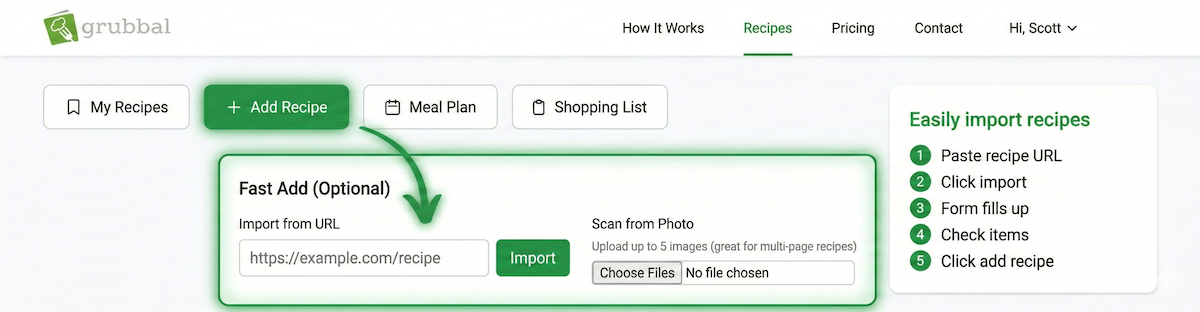
Once you're logged in, you'll see an Add Recipe button in the top navigation bar. Click it and you'll land on the Create Recipe page.

Step 2: Find the Fast Add Section
At the top of the Create Recipe page you'll see a card labeled Fast Add (Optional). This is where the magic happens. You'll see two options side by side — Import from URL on the left and Scan from Photo on the right.
For this guide we're using Import from URL.

Step 3: Paste Your Recipe URL
Go to any recipe website and copy the URL from your browser. Paste it directly into the URL input field in the Fast Add section.
Grubbal works with virtually any recipe website that displays ingredients and instructions on the page.
Step 4: Click Import
Hit the Import button. Grubbal will extract the recipe from the page — this typically takes just a few seconds. Most recipe websites include structured data that we can read instantly. For sites without it, we'll use AI to parse the content.
Step 5: Review the Extracted Recipe
When the import is complete you'll see a success message: "Imported! Review and edit below."
The form will be automatically populated with everything pulled from the original page including the title, description, ingredients, step-by-step instructions, prep time, cook time, servings, cuisine, course, difficulty level, and the source URL.


Take a minute to look it over. AI extraction is accurate the vast majority of the time but occasionally a field needs a small correction, especially on sites with unusual formatting.
Step 6: Make It Your Own
This is where Grubbal's fork feature comes in handy. The imported recipe is saved privately to your account — it won't appear publicly. You can edit anything the AI pulled in, add your own notes, swap ingredients, adjust serving sizes, or upload your own photo if the import didn't grab one.
The original recipe on the source website is never touched. This is your personal version.
Step 7: Save and Start Planning
Scroll to the bottom and click Create Recipe. Your recipe is now saved to your Recipe Box. You'll be redirected to your new recipe page where you can immediately add it to your meal plan and have it included in your next grocery list.
That's It
What used to mean bookmarking a link and hoping you'd find it again now takes under 30 seconds. Your recipe is saved, organized, and ready to turn into a grocery list the next time you plan your week.
If you haven't tried the URL import yet, give it a shot on your next recipe find.
Grubbal is a recipe and meal planning app that turns your recipes into accurate, ready-to-shop grocery lists. Available on web with mobile apps coming soon.